
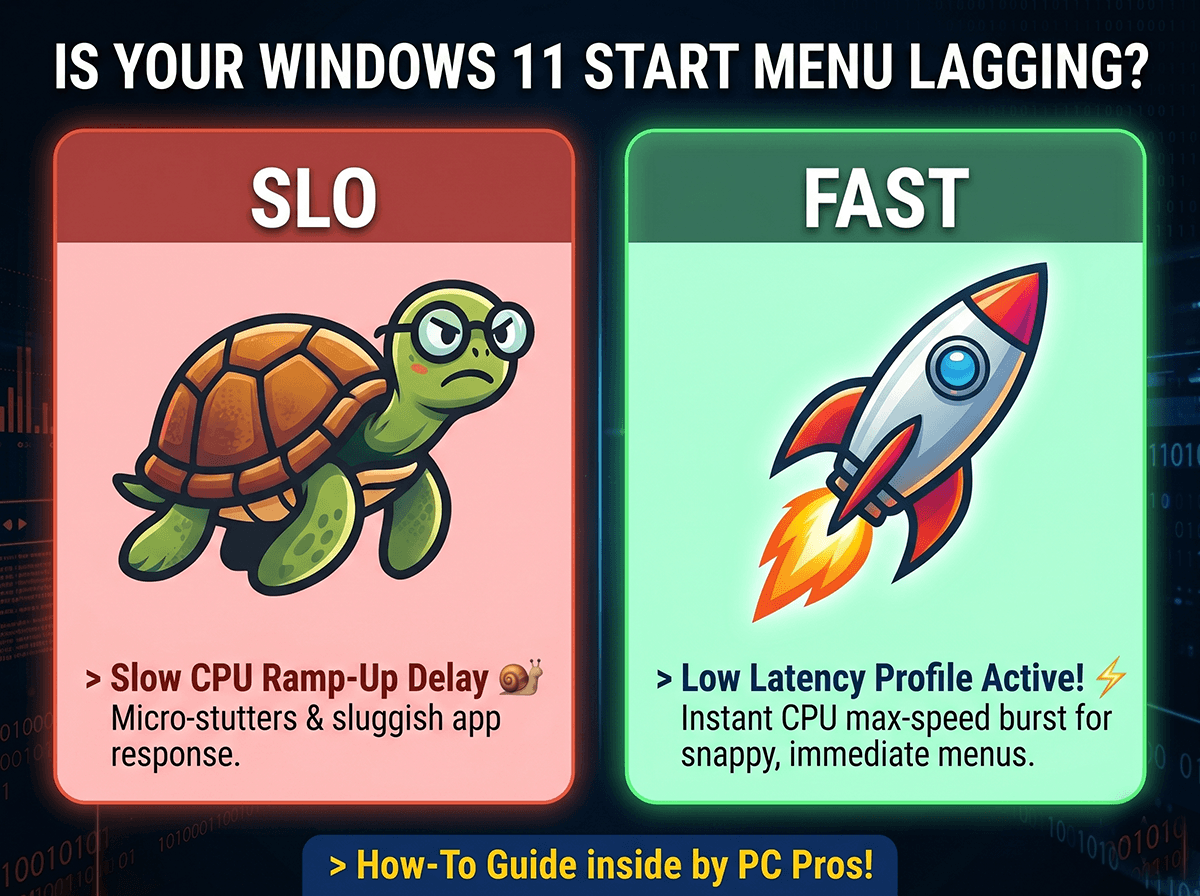
Have you ever noticed a tiny, frustrating hesitation right after clicking your Windows 11 Start menu, opening the Search bar, or launching an everyday office app? If you run a business or manage multiple office PCs, those micro-stutters add up to lost productivity and daily tech frustration.
Fortunately, Microsoft has quietly introduced a brilliant solution to tackle this exact issue. Released in the June 2026 Patch Tuesday update (KB5094126), a new performance-driven feature called the Low Latency Profile is designed to make the Windows core interface snap open instantly.
However, because Microsoft relies on a slow, staggered rollout strategy, this feature is likely dormant on your PC right now.
In this comprehensive guide, the team at PC Pros will explain exactly what this update does, why it won?t harm your hardware, and how you can manually force-enable it today to unlock a faster, smoother desktop experience.
What is the Windows 11 Low Latency Profile?
Historically, when you click an interactive interface element like the Start menu, your processor (CPU) takes a brief moment to scale up its performance to handle the rendering workload. On standard business laptops, budget hardware, or older desktops, that slight "ramp-up" delay is what causes the micro-stutter you feel.
The Low Latency Profile changes the rules. The moment your system detects an interactive trigger?like hitting the Windows key?it bypasses the gradual ramp-up and immediately spikes your CPU to its maximum frequency for a brief burst of 1 to 3 seconds. This is just long enough to snap the menu open instantly. Once the task is complete, the CPU immediately drops back down to its restful, idle state.
The "Race to Sleep" Principle: Is It Safe?
Some tech critics initially worried that constantly spiking the CPU to max speed would cause computer overheating or drain laptop batteries. Fortunately, those concerns have been debunked.
This technique relies on an established processor optimization philosophy known as "Race to Sleep." By working at absolute maximum speed for a fraction of a second, the CPU completes its task much faster and actually spends more total time resting in a deep, low-power sleep state between your clicks. During real-world testing, there has been absolutely zero measurable impact on device temperature or battery discharge rates.
While high-end flagship computers will notice a subtle improvement, this feature is a massive game-changer for budget, mid-range, and older office hardware.
Step 1: Verify Your Windows Update Status
Before forcing the feature on, you must ensure your operating system has the necessary underlying code installed.
- Go to Settings > System > About.
- Scroll down to Windows specifications and look at your OS Build.
- You must be on Build 26200.8655 or 26100.8655 (or higher).
If your build number is lower, navigate to Settings > Windows Update, click Check for updates, and install the June 2026 security patch (KB5094126). Restart your computer when prompted.
Step 2: Check if the Profile is Already Active
Because Microsoft uses a Controlled Feature Rollout (CFR), the code might be on your machine but sitting completely dormant. You cannot check this through standard Settings panels. To see if it's active, you have to watch your CPU frequency spike in real time.
Standard Windows Task Manager updates too slowly to catch a 1-second spike. We recommend downloading HWiNFO, a trusted, free hardware monitoring utility.
- Download and open HWiNFO (Select Sensors Only or Full mode).
- Find your CPU Core Clocks readout.
- Keep the window visible and tap your Windows Key to open the Start menu.
If your CPU frequency instantly jumps to its maximum rated turbo speed and immediately falls back down, the feature is already active! If the speed bar barely moves, move to Step 3 to force it on.
Step 3: How to Force-Enable the Speed Boost Using ViVeTool
If Microsoft?s servers haven't activated the feature on your machine yet, you can use a safe, open-source command-line tool called ViVeTool to wake it up.
1. Download and Extract ViVeTool: Head to the official ViVeTool GitHub repository and download the latest .zip file. Extract the contents directly into a folder named ViVeTool on your primary drive so its file path is exactly C:\ViVeTool.
2. Open Command Prompt as Administrator: Right-click your Start button and select Terminal (Admin) or search for Command Prompt, right-click it, and choose Run as administrator.
3. Navigate to the Folder: In the dark command window, type the following command and press Enter:
DOS
cd C:\ViVeTool
4. Execute the Activation Command: Carefully paste or type the official June 2026 feature identification command below and press Enter:
DOS
vivetool /enable /id:58989092
5. Restart Your PC: Once you see the success confirmation text in the command window, close it out and restart your computer to apply the changes.
Enjoy a Snappier Desktop Experience
Once your PC boots back up, open HWiNFO and test it again. When you trigger the Start Menu, Windows Search, or the Action Center, you will see your CPU immediately spring to life, bringing a buttery-smooth, immediate feel to your entire desktop interface.
As an added bonus, the June 2026 update also introduces several other incredible business features, including Shared Audio (allowing two users to connect two separate pairs of Bluetooth headphones to one PC), Multi-App Camera support (ending the frustration of your webcam locking up when multiple apps try to use it), and faster File Explorer bulk deletion.
Need Help Optimizing Your Business Network?
While utilizing tools like ViVeTool is a great trick for a single tech enthusiast, deploying updates, managing configurations, and maintaining ironclad security across an entire fleet of office computers takes professional oversight.
At PC Pros, we specialize in keeping local businesses fast, secure, and completely optimized. From automated patch management to network upgrades and malware protection, we handle the tech so you can focus on growing your business.
Want to ensure your office devices are running at peak performance? Contact PC Pros today for a comprehensive IT consultation!